Get in touch

info@sokhengich.com
Digital SignageSmart TVMulti-Branch

Bong Screen

Every Screen in Every Branch, Managed from One Dashboard.
Zones per Screen Layout
4
Reports: Plays, Uptime & Errors
3
Bong Screen
View Image

Project Overview

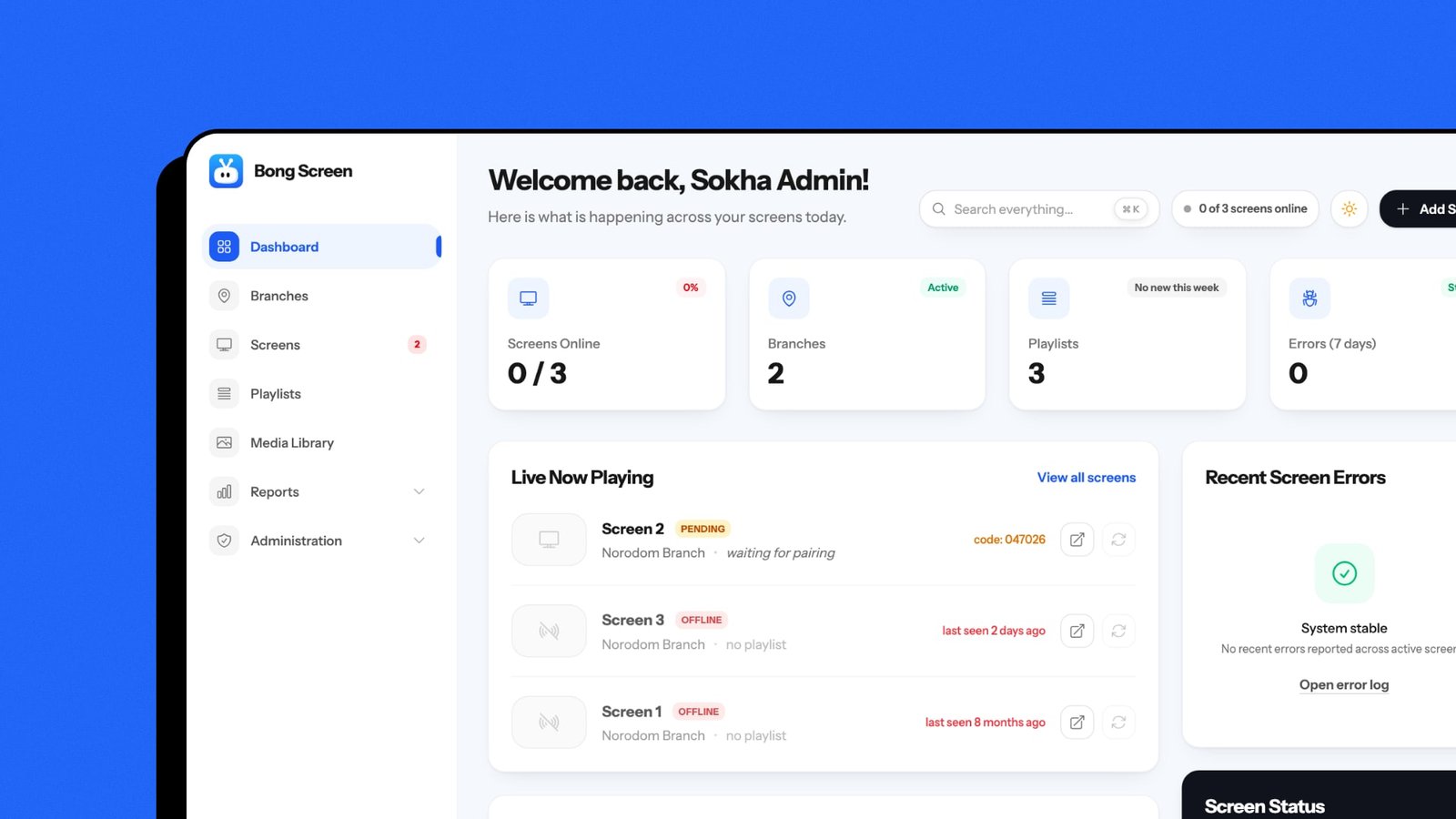
Bong Screen turns ordinary Samsung smart TVs into managed menu boards and promotion screens. Staff upload images and video to a media library, arrange them into playlists, and schedule those playlists onto screens grouped by branch. Each TV runs a Tizen app that pairs with a six-digit code, splits the display into up to four zones, and caches its media so it keeps playing when the internet drops. The dashboard shows which screens are online, what each one is playing, and any errors they report.
Stack
Laravel, Livewire, MySQL, Tizen
Year
2026

Solving Real Friction

The Friction

USB Sticks in Every Branch: Changing a menu price or a promotion means copying files to a USB stick and sending someone to each TV.

The Engineering

Content is updated once in the dashboard and reaches every paired screen over the internet.

The Friction

Nobody Knows a Screen Is Down: A TV can show a black screen or an old promotion for days before head office hears about it.

The Engineering

Each screen sends heartbeats and error reports, so the dashboard shows what is online, what is playing and what has failed.

The Friction

Screens Go Blank When the Internet Drops: Streaming-only signage stops as soon as the branch loses its connection.

The Engineering

The TV app caches its images and video locally and keeps playing its playlist offline.

The Friction

One Screen, One Message: A single full-screen slideshow cannot show the menu and the current promotion at the same time.

The Engineering

Display layouts split a screen into up to four zones, each with its own playlist.

The Friction

Different Content at Different Times: Breakfast, lunch and evening menus need to change on time without anyone touching the TV.

The Engineering

Playlists are assigned to screens by schedule, with a remote override when something needs to change immediately.

Core Architecture

Deep dive into the specialized systems engineered for this project.

Screen Pairing & Management

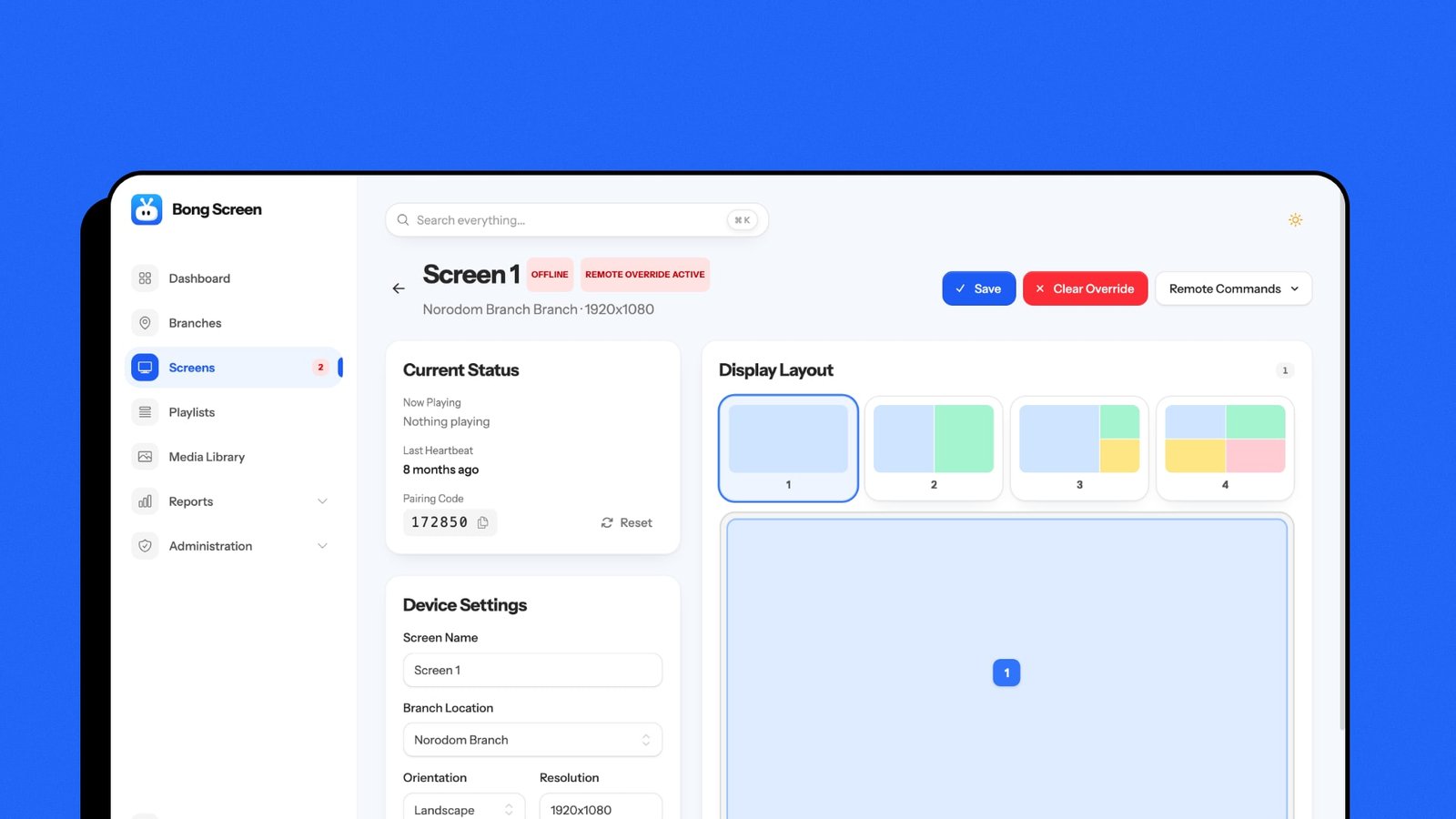
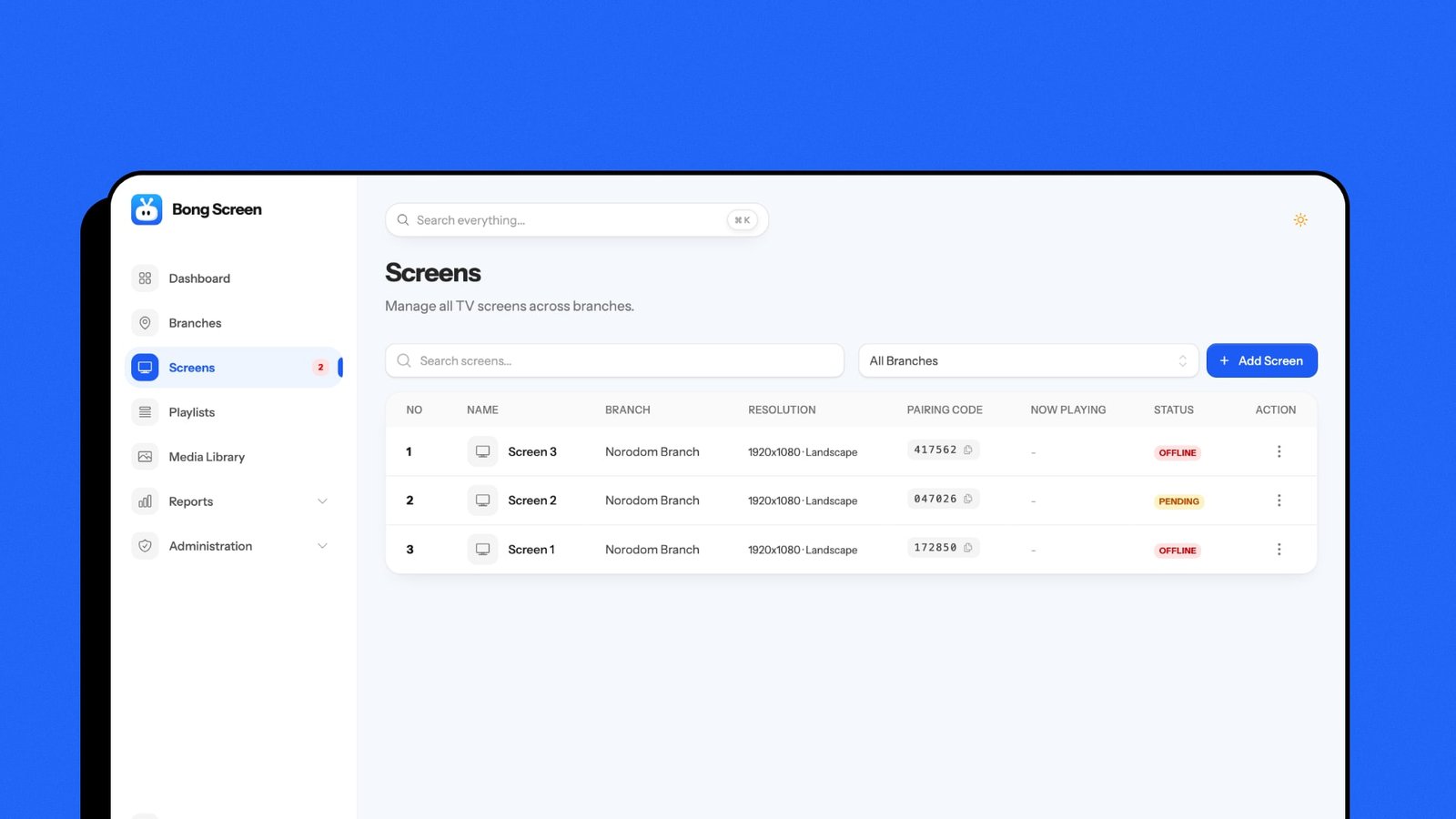
A new TV shows a six-digit pairing code. Staff enter it in the dashboard, assign the screen to a branch, and set its orientation and resolution.

Playlists & Media Library

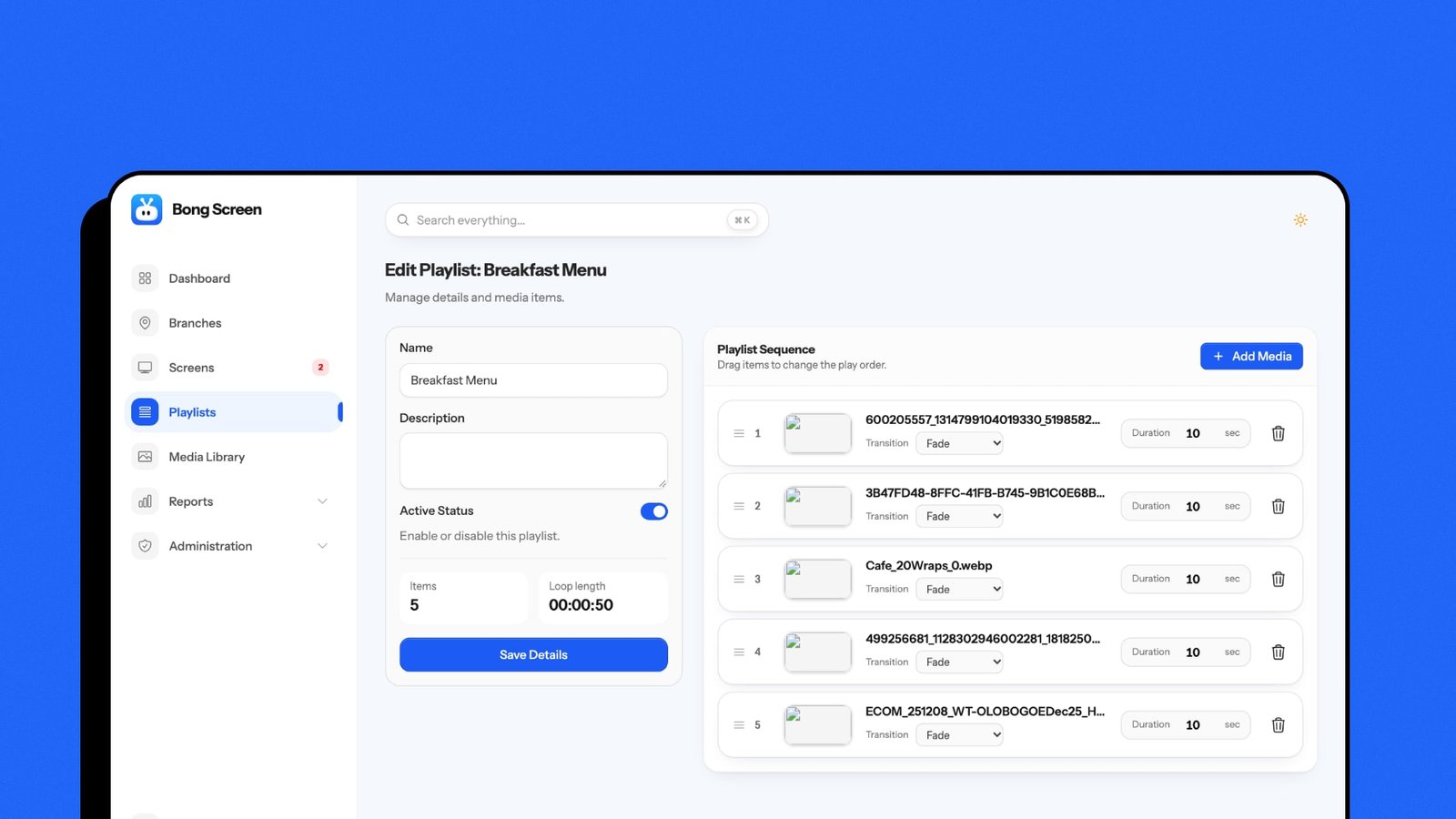
Upload images and video once, then build playlists by dragging items into order and setting a duration and transition for each one.

Multi-Zone Display Layouts

Split a screen into one to four zones and assign a different playlist to each, so a menu and a promotion can run side by side.

Scheduling & Remote Commands

Assign playlists to screens by schedule, override what is playing from the dashboard, and send remote commands to a TV without visiting the branch.

Offline Playback on the TV

The Tizen app downloads and caches images and video on the device, so the screen keeps playing its content through an internet outage.

Monitoring & Reports

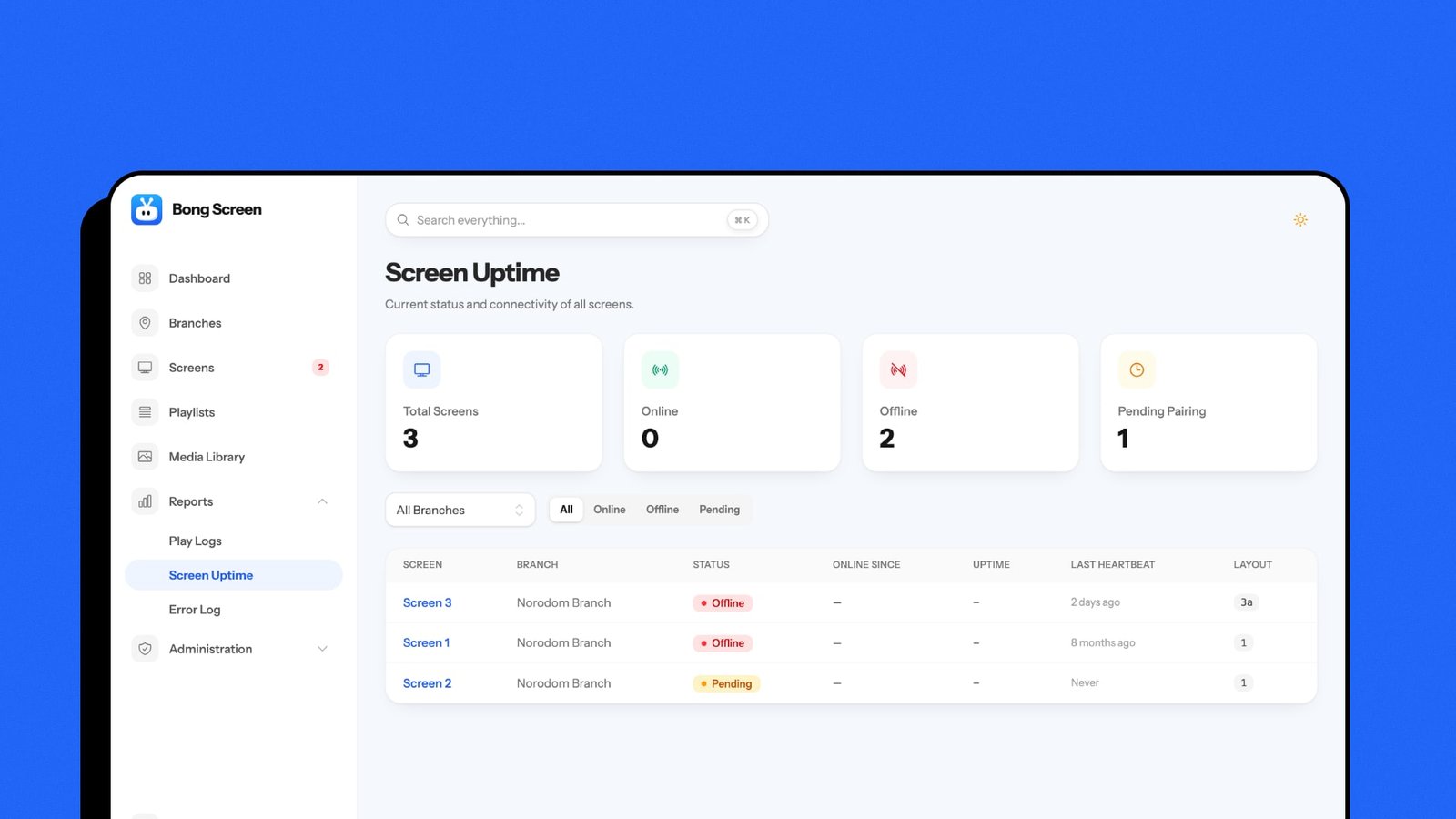
Heartbeats show which screens are online, offline or waiting to pair. Play logs, uptime and error reports cover every screen across all branches.

Branches, Roles & Permissions

Screens are grouped by branch, and each staff role has its own set of permissions for screens, playlists, media and reports.

Archive

Visual Index

A curated selection of interface modules and design system assets (01-04).
Next Project

M-Optic